
IPTV Smarters Pro Setup Guide: Step-by-Step Installation, Configuration & Optimization Tutorial
The ultimate step-by-step master tutorial for installing, configuring, and optimizing IPTV Smarters Pro on Amazon Firestick, Android TV, Samsung, LG, iOS, Windows, and Mac. Master Xtream Codes setup, internal player engines, multi-screen viewing, and troubleshooting.
- Introduction: Why IPTV Smarters Pro is the Universal Cross-Platform Standard
- What is IPTV Smarters Pro? Software Architecture and Capabilities
- Prerequisites Before You Begin the Installation
- Installing IPTV Smarters Pro on Amazon Fire TV Stick, 4K Max & Cube
- Installing on Certified Android TV, Google TV & Nvidia Shield
- Installing on Samsung Tizen & LG webOS Smart TVs
- Installing Smarters Player Lite on Apple TV, iPhone & iPad
- Installing on Windows 10/11 PC and macOS Desktops
- Connecting Your TVoxar Subscription via Xtream Codes API
- Essential Settings Optimization for 4K and 60 FPS Streams
- Technical Deep-Dive: Xtream Codes API vs. M3U Playlist URLs
- Mastering Smarters Pro: Multi-Screen, VOD Cinema & Parental Controls
- Troubleshooting Common IPTV Smarters Pro Errors
- Comparative Benchmark: Smarters Pro vs. TiviMate vs. IBO Player
- Frequently Asked Questions About IPTV Smarters Pro
- Summary and Next Steps with TVoxar IPTV
In the modern digital streaming landscape, the software application you select to decode and render your media playlists plays an instrumental role in your overall home theater experience. While niche applications cater specifically to individual operating systems, IPTV Smarters Pro (frequently distributed as Smarters Player Lite within the Apple ecosystem) has achieved global recognition as the most versatile, user-friendly, and universally accessible cross-platform IPTV application on the market. Whether your household operates on an Amazon Fire TV Stick in the family room, an Nvidia Shield in the dedicated home theater, an LG OLED in the bedroom, an iPad in the kitchen, or a Windows workstation in the office, IPTV Smarters Pro delivers a standardized, intuitive experience across every display.
However, many subscribers encounter initial difficulties during setup: sideloading security permissions, choosing between confusing connection methods, misconfigured hardware decoder engines that trigger audio desynchronization, or unpopulated electronic program guides.
In this comprehensive, step-by-step master tutorial, the TVoxar engineering team walks you through the entire process of installing, configuring, and optimizing IPTV Smarters Pro across every major operating system. You will learn how to authenticate your TVoxar subscription credentials using the high-performance Xtream Codes API, fine-tune internal video player engines, organize sports categories, configure multi-screen viewing, and resolve any operational errors you may encounter.
What is IPTV Smarters Pro? Software Architecture and Capabilities
Before diving into step-by-step installation instructions, it is essential to clarify the technical nature of IPTV Smarters Pro.
Player Software vs. Content Provider A fundamental misconception among new cord-cutters is assuming that IPTV Smarters Pro is a streaming service that includes channels. It is not. IPTV Smarters Pro is purely an advanced media player software client—analogous to how VLC Media Player or Google Chrome functions. It contains no pre-loaded channels, movies, sports feeds, or television schedules.
To watch live broadcasts, sports events, and on-demand movies, you must pair the application with a high-performance streaming provider like TVoxar IPTV, which supplies the underlying digital stream endpoints, authentication tokens, and electronic program guide data.
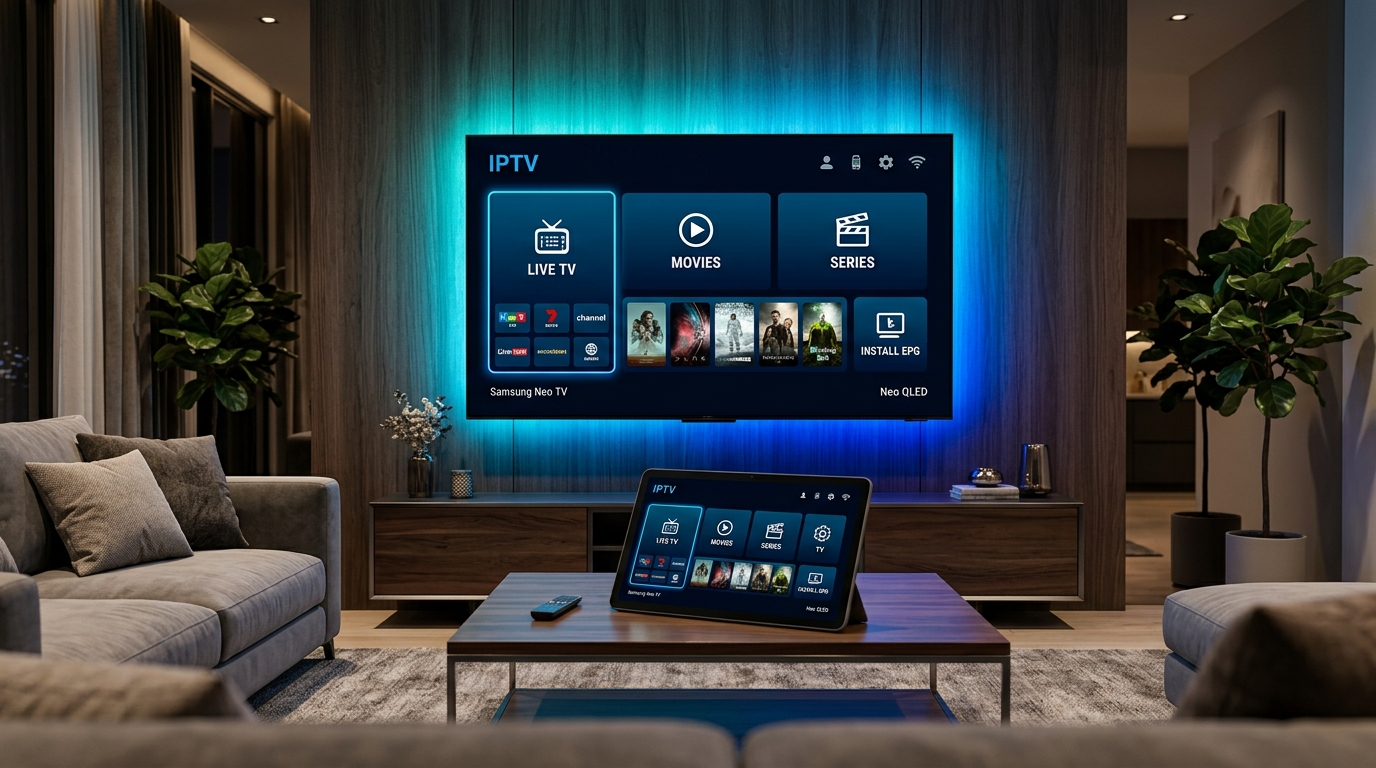
Core Architectural Features of IPTV Smarters Pro What makes Smarters Pro uniquely popular among millions of users worldwide is its rich feature set combined with exceptional ease of use: - Clean 4-Tile Dashboard: Content is divided into four distinct visual categories: Live TV, Movies, Series, and Multi-Screen. This structure prevents the clutter common in raw playlist viewers. - Xtream Codes API Native Integration: Seamlessly queries streaming servers via lightweight JSON endpoints rather than relying solely on massive text-based M3U playlist downloads. - Dual Internal Decoding Engines: Seamlessly toggle between Google's hardware-accelerated ExoPlayer engine and the ultra-compatible VLC player engine to handle challenging video and audio codecs. - Integrated Multi-Screen Split: Watch up to four simultaneous live sports broadcasts side by side on a single television screen. - Dynamic 7-Day Electronic Program Guide (EPG): Full schedule rendering with program descriptions, air times, and progress bars. - Parental Control Gateways: Comprehensive PIN protection to restrict access to adult networks, sensitive categories, or individual channel groups. - External Player Hand-Off: Built-in capability to launch external media players (such as MX Player or external VLC) directly from within the Smarters interface if a particular broadcast requires specialized deinterlacing.
Prerequisites Before You Begin the Installation
To ensure a seamless setup experience that takes less than five minutes, gather the following prerequisites before initiating software downloads:
- An Active TVoxar IPTV Subscription:
- A Compatible Streaming Device:
- Adequate Broadband Bandwidth:
Installing IPTV Smarters Pro on Amazon Fire TV Stick, 4K Max & Cube
Because Amazon operates its own proprietary app ecosystem, the full, ad-free version of IPTV Smarters Pro is installed via sideloading using the official Downloader application. This standard procedure takes under three minutes and requires no technical expertise. Follow our dedicated Firestick installation tutorial for additional device-specific context.
Detailed Step 1: Install the Free Downloader Application
1. Turn on your Amazon Firestick and navigate to the home screen.
2. Highlight the Find menu and select the Search tile.
3. Using the on-screen keyboard, type Downloader.
4. From the search results, select the orange Downloader icon (developed by AFTVnews).
5. Click Download or Get. The application will install in a few seconds.
Detailed Step 2: Enable Developer Options and Sideloading Permissions To allow Downloader to install the IPTV Smarters APK package, you must grant permission to install unknown apps: 1. From the Firestick home screen, click the Settings gear icon on the far right. 2. Select My Fire TV (on some devices, labeled Device & Software). 3. Check for Developer Options: - If Developer Options is visible: Click it, select Install unknown apps, find Downloader, and toggle it to ON. - If Developer Options is HIDDEN (Standard on newer Fire OS updates): Click About. Highlight your device name (e.g., Fire TV Stick 4K Max) and press the Center Select button on your remote rapidly 7 consecutive times. A notification will appear at the bottom of the screen stating: "No need, you are already a developer." - Press the Back button once to return to the My Fire TV menu, click the newly revealed Developer Options, select Install unknown apps, and toggle Downloader to ON.
Detailed Step 3: Download and Install IPTV Smarters Pro 1. Return to your Firestick home screen, navigate to Your Apps & Channels, and launch Downloader. 2. When prompted on first launch, click Allow to grant Downloader permission to access device storage. 3. Click the URL input box on the Downloader home screen to open the on-screen keyboard. 4. Input the official direct download code or clean APK download URL for IPTV Smarters Pro. 5. Click Go. Downloader will connect to the server and download the APK installer package (approximately 80MB). 6. When the download completes, Fire OS will automatically present an installation dialog. Click Install at the bottom right. 7. Once the installation finishes, click Done (do not click Open immediately). 8. Downloader will ask if you wish to delete the APK installer. Click Delete, and click Delete a second time to confirm. Deleting the installer removes the temporary setup file and conserves valuable Firestick flash storage.
Installing on Certified Android TV, Google TV & Nvidia Shield
Installing IPTV Smarters Pro on certified Android TV devices—such as the Nvidia Shield TV, Chromecast with Google TV, Sony Bravia Smart TVs, or Xiaomi streaming boxes—is even simpler because the application is often available directly through the official store. Consult our Android TV setup guide for additional hardware advice.
Method A: Direct Google Play Store Installation
1. Power on your Android TV device and open the official Google Play Store.
2. Click the search magnifying glass icon and search for IPTV Smarters Pro or Smarters Player.
3. Select the verified application from the search results.
4. Click Install. The operating system handles downloading, verification, and installation automatically.
Method B: Sideloading via Downloader (If Regionally Restricted) If the Google Play Store in your geographic territory restricts media player listings: 1. Install Downloader from the Google Play Store. 2. Open your device's Settings > Device Preferences > Security & Restrictions > Unknown Sources. 3. Enable unknown sources for the Downloader application. 4. Open Downloader, enter the direct APK download link, and click Install.
Installing on Samsung Tizen & LG webOS Smart TVs
For viewers utilizing native Samsung Smart TVs (operating on Tizen OS) or LG Smart TVs (operating on webOS), IPTV Smarters is distributed directly through the official television manufacturer application repositories. For an in-depth analysis of smart TV streaming performance, read our Smart TV app comparison and Samsung & LG installation guide.
Installation Procedure for Samsung Smart TVs
1. Press the Home button on your Samsung television remote control.
2. Scroll to the left and select the Apps icon.
3. Click the magnifying glass search icon at the top right of the Samsung Apps Store.
4. Search for IPTV Smarters Pro or Smarters Player.
5. Click Install. Once the download finishes, select Add to Home to pin the application to your TV's primary launch ribbon.
Installation Procedure for LG Smart TVs
1. Press the Home button on your LG Magic Remote.
2. Launch the LG Content Store (or Apps on newer webOS versions).
3. Select the search icon and search for IPTV Smarters Pro.
4. Click Install to download the application directly to your television's internal flash storage.
Important Note for Smart TV Users: While IPTV Smarters operates reliably on newer Samsung and LG displays, older television processors may experience minor navigation sluggishness due to RAM limitations. If your smart TV feels slow, consider testing IBO Player Pro or plugging in a dedicated Amazon Firestick 4K for maximum responsiveness.
Installing Smarters Player Lite on Apple TV, iPhone & iPad
Due to strict Apple App Store trademark and distribution guidelines, IPTV Smarters Pro is officially distributed across iOS, iPadOS, and tvOS under the name Smarters Player Lite. The underlying code engine, user interface, and streaming capabilities are identical. Follow our Apple TV and iOS setup guide for complete instructions.
Installation Procedure:
1. Open the official Apple App Store on your Apple TV 4K, iPhone, or iPad.
2. Search for Smarters Player Lite.
3. Verify that the developer is listed as WHMCS SMARTERS or Smarters.
4. Tap Get or the Cloud icon to download the application.
5. Once downloaded, launch the app directly from your home screen.
Installing on Windows 10/11 PC and macOS Desktops
For multi-monitor workstations, gaming laptops, and home office setups, IPTV Smarters provides dedicated standalone desktop applications. Review our Windows & Mac setup guide for additional desktop streaming recommendations.
- For Windows PC:
- For macOS:
Connecting Your TVoxar Subscription via Xtream Codes API
Now that IPTV Smarters Pro is installed on your device, the most critical step is configuring your connection parameters. IPTV Smarters supports two primary connection protocols: raw M3U playlist URLs and the Xtream Codes API.
Why You Should ALWAYS Choose Xtream Codes API While Smarters allows you to paste an M3U playlist link, doing so is highly discouraged: - M3U text files force the app to download and parse a massive text file containing thousands of channels on every single launch. - M3U parsing frequently freezes or crashes memory-constrained streaming sticks. - The Xtream Codes API communicates via efficient, structured JSON database queries. It loads categories in fractions of a second, separates Live TV from VOD cinema cleanly, and updates the electronic program guide automatically in the background.
Step-by-Step Connection Instructions
- Launch IPTV Smarters Pro on your device.
- On first launch, review and accept the end-user license agreement.
- When presented with the login selection screen, click Login with Xtream Codes API (often displayed as Add User via Xtream Codes).
- You will see four input fields. Complete them with precision:
- Click the prominent Add User button.
What Happens Next Within five to twenty seconds, IPTV Smarters Pro will establish an encrypted handshake with TVoxar's edge servers: - Channel categories for global entertainment, 24/7 news, and live sports channels will be imported. - The on-demand movie and television series catalog will index with cover artwork and metadata. - The electronic program guide schedule will sync with your device clock. - You will be redirected to the main 4-tile dashboard, ready to stream.
Essential Settings Optimization for 4K and 60 FPS Streams
While IPTV Smarters Pro works right out of the box, adjusting a few critical internal parameters will significantly enhance video smoothness, eliminate audio lag, and optimize picture clarity.
1. Select the Optimal Internal Player Engine From the main dashboard, click the Settings (Gear Icon) in the top right corner and select Player Selection / Player Settings: - For Firestick & Android TV: Change the default video engine from Built-in to Hardware (ExoPlayer). ExoPlayer interfaces directly with your streaming stick's GPU, minimizing CPU usage and guaranteeing butter-smooth 60fps playback during live Premier League or Formula 1 broadcasts. - For Complex Audio / Surround Sound: If you encounter a channel or movie that plays video but lacks sound, switch the player engine to VLC. VLC contains software decoders for AC-3, E-AC-3, and DTS surround sound formats.
2. Configure Electronic Program Guide (EPG) Auto-Update 1. In the Settings menu, navigate to EPG / Time Format. 2. Select EPG Timeline and change the update interval to Every 24 Hours. 3. Ensure the Time Format is set to your preferred standard (12-hour AM/PM or 24-hour military format). 4. If channel schedules appear shifted forward or backward by an hour due to daylight saving time, adjust the EPG Time Offset slider until the guide aligns perfectly with your local time.
3. Adjust Internal Buffer Size for Jitter Prevention 1. In Settings, select General Settings or Player Settings. 2. Locate the Buffer Size parameter. 3. Increase the buffer duration from the default 0 seconds to 3 to 5 seconds. 4. Enable Open Buffer. 5. Why this matters: A 3-to-5-second buffer stores a small safety reservoir of video in your device's memory. If your home Wi-Fi experiences a momentary radio blip, playback remains completely uninterrupted. Review our complete guide on fixing IPTV buffering for deeper network tuning.
4. Enable Stream Format Standardization - In Settings, locate Stream Format. - Change the stream format from Default to HLS (m3u8) or MPEG-TS (.ts) depending on your network stability. MPEG-TS provides the lowest possible channel switching latency, while HLS delivers superior resilience over fluctuating wireless connections.
5. Multi-Channel Audio Passthrough and Subtitle Customization For home theater owners with soundbars or multi-speaker surround setups: - In Settings, navigate to Audio Settings. - Enable Hardware Audio Passthrough if your television is connected to an external AVR or soundbar via HDMI eARC or Optical TOSLINK. - This instructs Smarters Pro to pass raw Dolby Digital (AC-3) and Dolby Digital Plus (E-AC-3) bitstreams directly to your external sound system without downmixing to 2-channel stereo. - In Subtitle Settings, configure subtitle background opacity to 50% and font size to Normal. This guarantees that foreign film dialogue remains easily readable against bright backgrounds during high-contrast scenes.
Technical Deep-Dive: Xtream Codes API vs. M3U Playlist URLs
Understanding the internal networking architecture of IPTV Smarters Pro clarifies why authentication protocols matter:
| Architectural Metric | Xtream Codes API Connection | Traditional M3U Playlist Link |
|---|---|---|
| Initial Boot Latency | Sub-second (typically under 800ms) | 15 to 45 seconds on streaming sticks |
| Data Parsing Method | Asynchronous JSON database queries | Synchronous monolithic text file parsing |
| Memory Footprint | Extremely low (under 80MB RAM) | High (frequently exceeds 400MB RAM) |
| Electronic Program Guide | Automated dynamic XMLTV synchronization | Requires secondary manual EPG URL configuration |
| Category Organization | Clean, server-defined folders and tags | Flat, raw channel list requiring client filtering |
| Account Expiry Tracking | Native dashboard display of active period | Completely absent |
When Smarters connects via Xtream Codes, it communicates with TVoxar's authentication clusters. The app sends a lightweight HTTP GET request containing your username and password parameters, receiving a structured JSON response containing category mappings, server time offsets, and streaming port tokens. Because individual channel URLs are only resolved when a user actively clicks on a channel, bandwidth and device memory consumption remain minimal.
In contrast, downloading an M3U file forces your streaming device to download an 8MB to 15MB plain text file containing every single stream URL in the database. The media stick must parse this file line by line, creating temporary objects in volatile RAM. On older Amazon Firesticks or budget Android boxes with only 1GB of memory, this parsing operation frequently triggers operating system out-of-memory (OOM) errors, freezing the application before playback can even commence.
Mastering Smarters Pro: Multi-Screen, VOD Cinema & Parental Controls
Once configured, IPTV Smarters Pro unlocks an impressive suite of advanced entertainment features that rival high-end commercial cable boxes.
1. Multi-Screen Viewing: Watch 4 Games Simultaneously For sports fans on action-packed Saturday afternoons: 1. From the main dashboard, click the Multi-Screen tile. 2. Select your preferred layout grid: - 2-Screen Split (ideal for comparing two matches side by side) - 3-Screen Layout (one primary window with two secondary feeds) - 4-Screen Quad Grid (four simultaneous live broadcasts) 3. Click the + (Plus Icon) inside each quadrant to select any channel from your TVoxar sports lineup. 4. Click on any window to switch the primary audio feed instantly, or double-click to expand a window to full screen when a goal is scored!
2. Browsing On-Demand Cinema and TV Series Clicking the Movies or Series tiles transforms Smarters Pro into a Netflix-style home theater interface: - Rich Cover Art & Trailers: View high-resolution posters, IMDb audience ratings, release dates, and watch official trailers before starting playback. - Episodic Organization: Television box sets are structured logically by Season and Episode, with automated memory markers that track your watching progress. - Audio & Subtitle Track Selection: During playback, press the remote's down arrow or click the speech bubble icon to cycle between original audio soundtracks and toggle crystal-clear multi-language subtitles.
3. Setting Up Parental Controls and PIN Locking Protect children from accessing adult content or sensitive international categories: 1. In Settings, click Parental Control. 2. Establish a secure 4-digit master PIN. 3. Select Lock Categories and check any channel categories, movie genres, or adult folders you wish to restrict. 4. Locked categories will be completely hidden from the channel guide until the correct PIN is entered.
Troubleshooting Common IPTV Smarters Pro Errors
If you encounter an operational hurdle while using IPTV Smarters Pro, use this proven troubleshooting reference to resolve the issue rapidly:
1. Error: "Authorization Failed" or "Invalid Details" - Cause: Character mismatch in credentials or accidental leading/trailing whitespace. - Solution: Verify your username, password, and server URL against your welcome email. On virtual keyboards, autocompletion often inserts an accidental space after the username. Delete and re-type the credentials carefully.
2. Error: "Failed to Fetch Data" or Endless Loading Spinner - Cause: Network timeout between your local internet service provider and our authentication servers. - Solution: Reboot your home router and streaming stick. If your ISP is actively inspecting and throttling IPTV traffic, connect your device to an encrypted VPN using the WireGuard protocol before launching Smarters. Consult our best VPNs for IPTV guide.
3. Video Plays with No Sound (or Audio Plays with a Black Screen) - Cause: The current video or audio codec is unsupported by the active player engine. - Solution: Open Smarters Settings > Player Selection, and change the internal player from Built-in to VLC Player Engine. Alternatively, install the external VLC Media Player app from your device app store and set Smarters to open external VLC for that stream.
4. Missing Electronic Program Guide (EPG) Schedules - Cause: Expired guide cache or local database desynchronization. - Solution: From the Smarters home screen, click the Install EPG / Update EPG button. Allow the progress bar to complete 100%. Once updated, the channel timeline will re-populate.
5. Application Crashes or Closes Suddenly on Firestick - Cause: Accumulated thumbnail cache exhausting device RAM memory. - Solution: Go to Firestick Settings > Applications > Manage Installed Applications > IPTV Smarters Pro. Click Clear Cache (never click Clear Data unless you want to re-enter credentials). Restart your Firestick via Settings > My Fire TV > Restart.
Comparative Benchmark: Smarters Pro vs. TiviMate vs. IBO Player
To help you understand how IPTV Smarters Pro stacks up against alternative leading applications, review this technical benchmark comparison:
| Evaluation Criteria | IPTV Smarters Pro | TiviMate Premium | IBO Player Pro |
|---|---|---|---|
| Primary Strength | Universal Cross-Platform Versatility | Cable-Box EPG Quality & Remote Usability | Native Smart TV Speed & Web Provisioning |
| Operating Systems | Firestick, Android, iOS, Smart TV, Win, Mac | Android TV, Google TV, Fire OS Only | Samsung Tizen, LG webOS, Android, Apple |
| Learning Curve | Extremely Low (Intuitive 4-Tile Dashboard) | Moderate (Feature-Dense Remote Shortcuts) | Very Low (Basic Portal Interface) |
| Multi-Screen Support | Yes (2 to 4 screens built-in) | Yes (Up to 9 screens simultaneously) | No (Hardware Limited on Smart TVs) |
| VOD Library Interface | Excellent (Posters, Synopses, Trailers) | Good (Basic Posters and Category Trees) | Good (Clean Category Navigation) |
| Pricing / Licensing | Free (Ad-free sideload available) | Freemium ($34.99 Lifetime License) | 7-day trial + Paid Developer License |
Frequently Asked Questions About IPTV Smarters Pro
Is IPTV Smarters Pro completely free to use? Yes. The standard version of IPTV Smarters Pro is completely free to download and use. It provides full access to live TV, video on demand, electronic program guides, and multi-screen viewing. While the developer offers an optional "Master / Pro" version with minor cosmetic customizations, the standard free edition provides everything necessary for a premium streaming experience.
Why is the app called "Smarters Player Lite" on Apple iPhones and Apple TVs? Apple enforces strict trademark and content guidelines within the App Store. To ensure full compliance with Apple's terms of service, the developers distribute the iOS, iPadOS, and tvOS versions under the name "Smarters Player Lite." The underlying code, interface, and performance are identical to the Android and Firestick editions.
Can I log into IPTV Smarters Pro on multiple devices at the same time? You can install IPTV Smarters Pro on every television, phone, and computer in your home. However, simultaneous active streams depend entirely on your active TVoxar subscription plan. If you possess a single-connection account, only one device can actively stream at any given moment. To stream on multiple screens concurrently in different rooms, you can upgrade to a multi-screen package through our portal.
How do I update IPTV Smarters Pro on my Amazon Firestick? Because sideloaded applications do not update automatically through the Amazon Appstore, you update the app by simply using the Downloader app to download the latest APK installer file. Running the new installer will update the application files in place while preserving your login credentials, favorites, and settings.
Does IPTV Smarters Pro support multiple audio tracks and subtitles? Yes. When streaming international networks, live sports, or on-demand cinema, click the speech bubble or audio icon on the on-screen playback controller to choose between alternate language audio commentaries and toggle multi-language SRT or CC subtitles.
Summary and Next Steps with TVoxar IPTV
IPTV Smarters Pro has earned its status as the world's most popular IPTV player through relentless cross-platform compatibility, an intuitive dashboard design, and rock-solid video playback capabilities. By pairing its versatile interface with high-performance Anti-Freeze 9.3 edge streaming, you create a home entertainment setup that rivals traditional cable and satellite services at a fraction of the cost.
Ready to start streaming? Explore our flexible TVoxar IPTV subscription passes, get your instant automated activation credentials, and connect IPTV Smarters Pro on all your favorite devices in under five minutes today. If you need any assistance along the way, our 24/7 technical helpdesk is always standing by to help.
Related Guides & Tutorials
Enhance Your IPTV Streaming Experience
Get premium 4K channels and sports feeds with TVoxar's Anti-Freeze 9.3 network.